
Nulea M501 Wireless Trackball Mouse Review: Best Ergonomic Choice? (2026)
Wrist pain is the silent killer of productivity. If you spend hours scrolling, clicking, and dragging, you are familiar with the ache that creeps up your forearm. Traditional mice force your hand into unnatural positions and require constant movement, which can lead to repetitive strain injuries (RSI) or carpal tunnel syndrome.
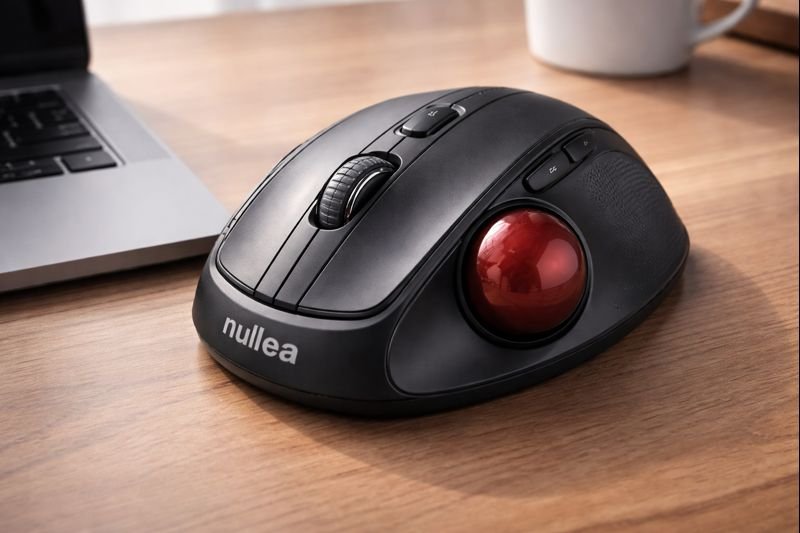
The Nulea M501 Wireless Trackball Mouse offers a radical solution: stop moving your hand entirely. By using a thumb-controlled trackball, this ergonomic device allows you to navigate your screen with precision while your arm stays perfectly still. It combines the comfort of a stationary device with modern features like tri-mode connectivity (Bluetooth + USB) and a rechargeable battery.
But is switching to a trackball worth the learning curve? In this in-depth Nulea M501 Wireless Trackball Mouse review, we test its precision, comfort, and multi-device capabilities to see if it can truly save your wrists in 2026.
Check Current Price on Amazon📖 Table of Contents
1. Product Overview

The Nulea M501 is a budget-friendly alternative to premium trackball mice like the Logitech MX Ergo. It features a sculpted, stationary body that supports your palm at a natural angle. Instead of sliding the mouse around your desk, you roll a smooth trackball with your thumb to move the cursor.
This design makes it ideal for cramped workspaces—since the mouse doesn’t move, you don’t need a mousepad or empty desk space. It is fully rechargeable via USB-C and supports connecting to three different devices at once, making it a versatile tool for multitaskers.
2. Ergonomics: Why Choose a Trackball?
The primary selling point of the Nulea M501 is health. Standard mice require you to anchor your wrist and pivot, or move your entire arm. Over thousands of hours, this friction causes strain.

With the M501, your palm rests fully on the curved surface. The angle puts your hand in a “handshake” position, which is more neutral than the flat-palm position required by traditional mice. By transferring the workload to your thumb—which is naturally dexterous—you relieve pressure on the median nerve in your wrist.
Best For:
- Graphic Designers: Who need pixel-perfect control without large arm movements.
- Office Workers: Who suffer from wrist fatigue or carpal tunnel.
- Small Desks: Coffee shops, airplane trays, or cluttered workstations where mouse space is zero.
3. Precision & Control
Transitioning to a trackball takes practice, but the Nulea M501 makes it easier with adjustable DPI. You can toggle between 5 sensitivity levels (100, 200, 400, 800, 1200, or up to 2400 depending on settings) to find the speed that feels right for you.
The trackball itself is smooth and responsive. For precision tasks like photo editing or CAD work, you can lower the DPI to get extreme accuracy. For navigating dual monitors, bump the DPI up to flick the cursor across screens with a tiny thumb movement.
💡 Pro Tip: Cleaning is Key
Trackballs collect dust and skin oils inside the socket, which can make the movement sticky. Pop the ball out once a week and wipe the internal sensors to keep it gliding smoothly.4. Connectivity & Versatility
In a world of multiple devices, the M501 keeps up. It features Tri-Mode Connection:
- Bluetooth 1 & 2: Connect to your laptop and iPad.
- 2.4G USB Dongle: Connect to your desktop PC for a lag-free experience.
A button on the bottom allows you to switch between these three devices instantly. This is invaluable for users who work with a PC setup but also need to type on a tablet or phone.
5. Technical Specifications
| Feature | Specification |
|---|---|
| Connectivity | Bluetooth 5.0 / 3.0 + 2.4GHz USB |
| DPI Levels | Adjustable (Up to 2400) |
| Buttons | 6 (Left, Right, Scroll, DPI, Forward, Back) |
| Battery | Rechargeable (USB-C) |
| Dimensions | Ergonomic Stationary Design |
| Compatibility | Windows, macOS, Android, iPadOS |
6. Pros & Cons
- Excellent ergonomic support for wrist pain relief.
- Connects to 3 devices simultaneously.
- Stationary design saves desk space.
- Rechargeable battery via USB-C (no AA batteries needed).
- Smooth trackball movement with adjustable DPI.
- Budget-friendly compared to big brands.
- Thumb-control has a learning curve for new users.
- Requires regular cleaning of the trackball socket.
- Plastic build feels less premium than Logitech options.
- Side buttons may not be programmable on Mac.
7. Nulea M501 vs. Logitech MX Ergo
The Logitech MX Ergo (and M575) is the gold standard, but the Nulea M501 offers a compelling argument for value.
- Price: Nulea is significantly cheaper, often half the price.
- Connectivity: Both offer multi-device switching, but Nulea includes it at a lower entry point.
- Comfort: Logitech’s hinge allows you to adjust the tilt angle; Nulea’s angle is fixed but comfortable for most.
- Charging: Both are rechargeable, but Nulea uses modern USB-C while older Logitech models sometimes still use Micro-USB.
Verdict: If you are new to trackballs and want to try one without spending $100, the Nulea M501 is the perfect entry point.
8. Final Verdict
The Nulea M501 Wireless Trackball Mouse is a fantastic solution for anyone suffering from wrist fatigue or working in tight spaces. It delivers the core benefits of a trackball—stationary comfort, precision, and reduced strain—at a fraction of the cost of premium competitors.
While the build quality isn’t quite “luxury,” the functionality is top-tier. For students, remote workers, and professionals looking to save their wrists, this is a smart, ergonomic investment.
Buy the Nulea M501 Now9. Frequently Asked Questions
Is it hard to get used to a trackball?
It typically takes 2-3 days to build the muscle memory in your thumb. Once you adjust, many users find it faster and more comfortable than a regular mouse.
Does it work on Mac?
Yes, it connects seamlessly via Bluetooth or the USB dongle. However, the “Forward” and “Back” side buttons may not function by default on macOS without third-party software.
How long does the battery last?
A full charge can last several weeks depending on usage. It charges quickly via the included USB-C cable.
Can I use it for gaming?
It is great for strategy or simulation games, but generally not recommended for fast-paced FPS games where flick-aiming is required.
🚀 Tech Deals Radar
Get alerts on ergonomic gear and tech accessories.
🇺🇸 Join USA Deals Channel 🇪🇺 Join Europe Deals Channel
Start Your Own Review Blog
Share your tech findings and earn income. Get up to 75% off hosting.
Claim Hostinger Discount

[…] you have wrist pain, the Nulea M501 Trackball is superior for ergonomics since you don’t move your arm. But for traditional mouse users who […]